



















Last updated: September 29, 2026
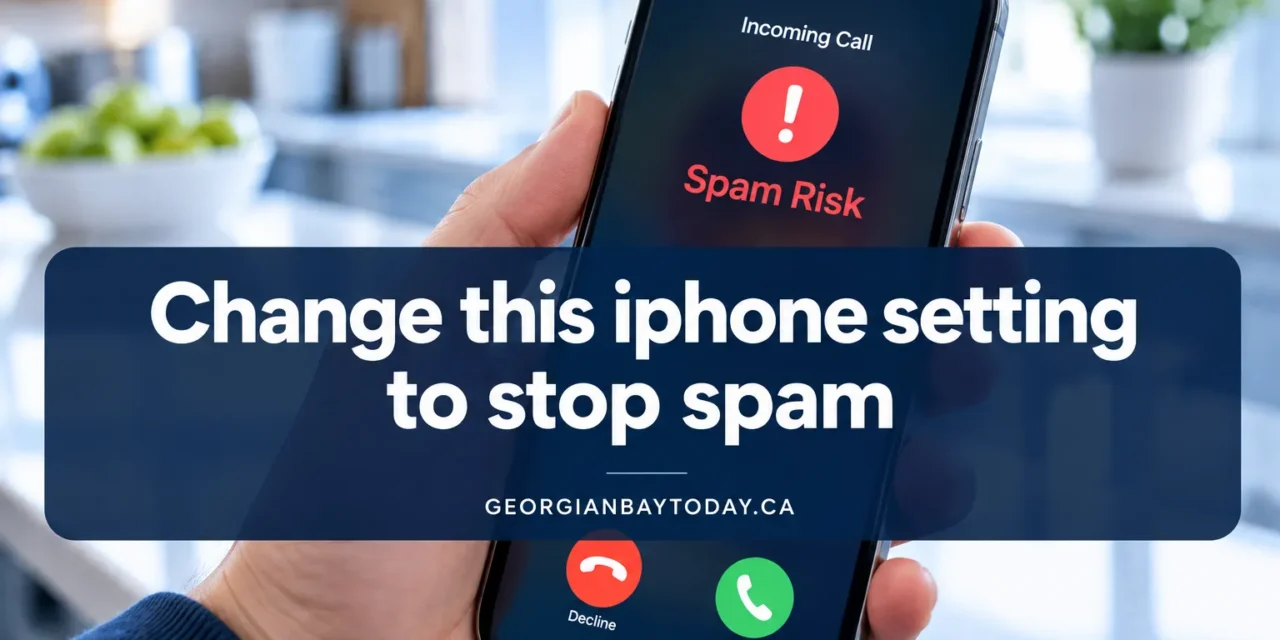
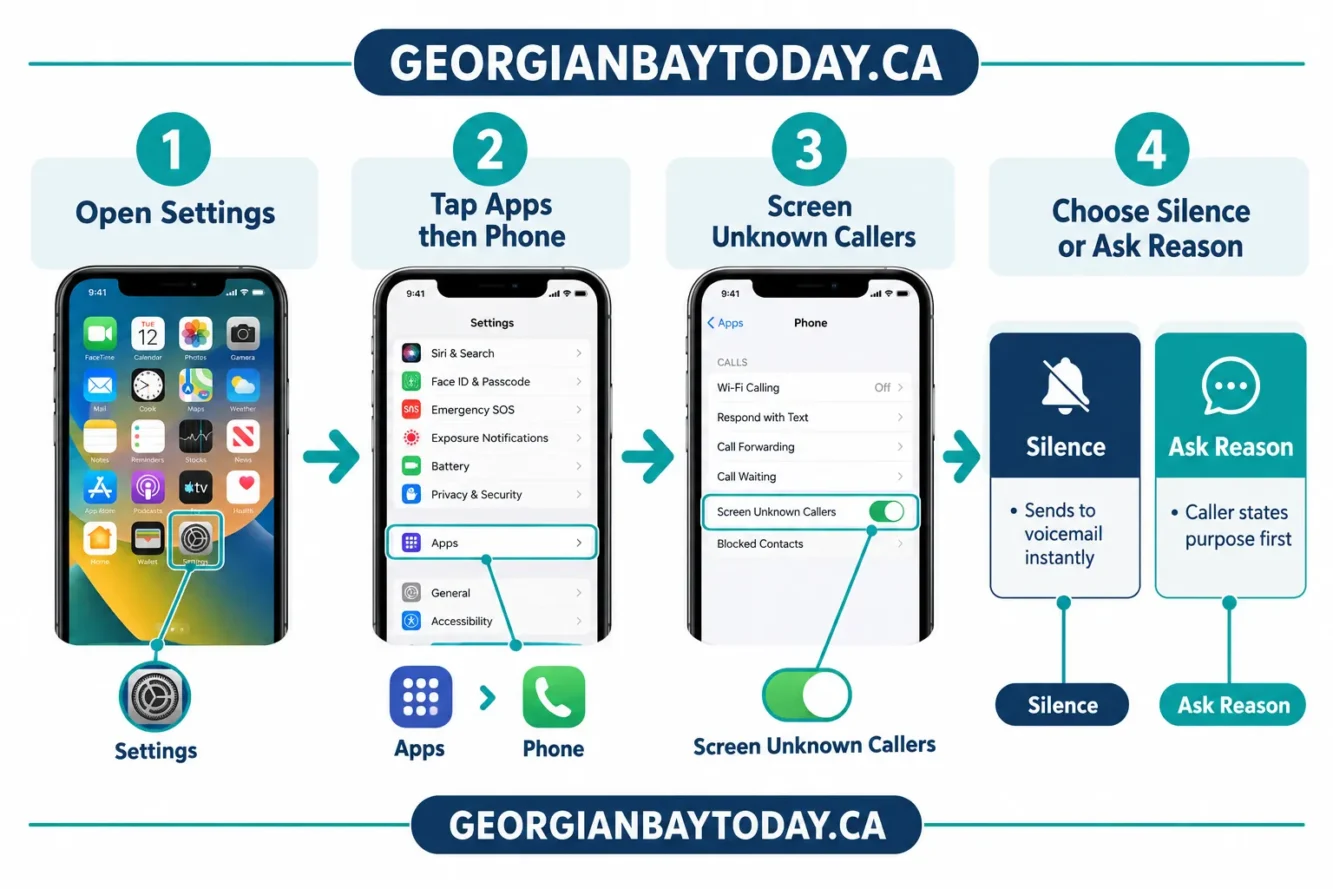
Go to Settings → Apps → Phone → Screen Unknown Callers and select Silence. This sends every call from a number not saved in your contacts straight to voicemail without your phone ever ringing. For an added layer, turn on the Spam toggle under Call Filtering in the same menu to silence carrier-flagged fraud calls automatically.
The key setting is Screen Unknown Callers, found at Settings → Apps → Phone → Screen Unknown Callers. According to Apple’s official support documentation, this feature offers three options: Never, Ask Reason for Calling, and Silence. Choosing Silence means any call from a number not in your contacts, not in your recent outgoing calls, and not suggested by Siri goes directly to voicemail without ringing your phone.
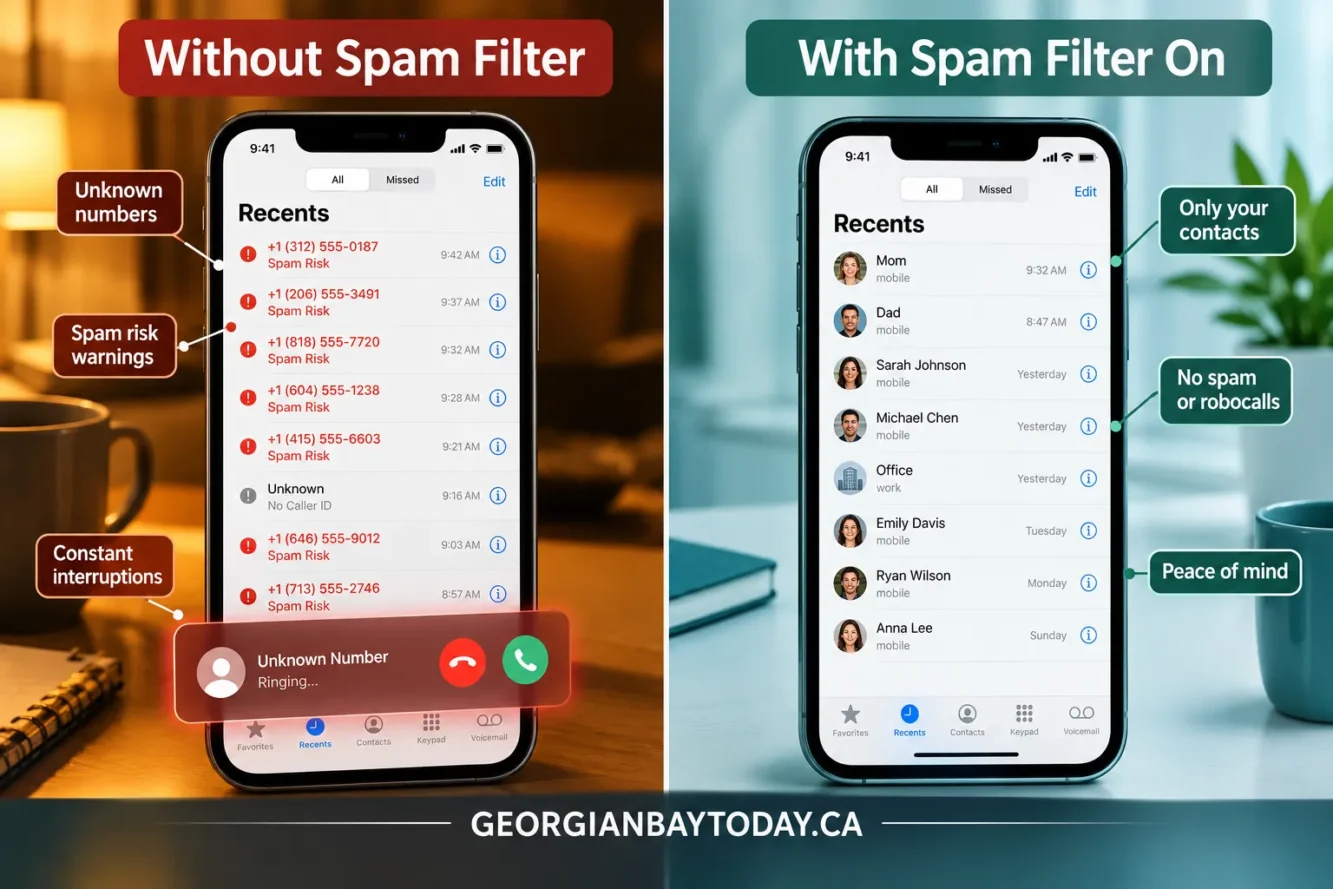
Apple also added a Call Filtering section in the same menu. Here, two separate toggles control Unknown Callers and Spam. Turning on Spam causes calls your carrier has flagged as possible spam or fraud to be silenced and placed in a dedicated Spam list rather than appearing in your Recents.
Quick decision guide:
Enabling this setting takes under a minute. Here are the exact steps:
Optionally, scroll up slightly in the same Phone menu to find Call Filtering. Toggle on Unknown Callers and Spam for additional filtering.
On older iOS versions (iOS 13 through iOS 17), the path was Settings → Phone → Silence Unknown Callers. That toggle still exists on many devices and works the same way, as confirmed by MacRumors’ guide to silencing unknown callers.
Do Not Disturb (now called Focus on modern iPhones) can reduce spam calls, but it is not the same as silencing unknown callers. Focus modes silence all calls unless you allow specific contacts or apps. However, Focus is designed for scheduled quiet time, not permanent spam filtering.
Silence Unknown Callers is the better tool for ongoing spam protection because it runs continuously, regardless of your Focus status. Do Not Disturb is better for meetings or sleep. Using both together gives the strongest coverage.
These two features serve different purposes. Block Contact targets a specific number you already know is unwanted. That number goes to voicemail and never appears in your Recents. Silence Unknown Callers casts a much wider net, silencing every number not saved in your contacts.
In practice: if a telemarketer calls from a number you recognize, block that contact. If you want to stop the flood of random robocalls from numbers you have never seen before, Silence Unknown Callers is the right tool.
Common mistake: people block individual spam numbers expecting it to stop all spam. It does not. Spam operations rotate through thousands of numbers, so blocking one number barely makes a dent.
Yes. The Spam toggle under Call Filtering (Settings → Apps → Phone → Call Filtering) enables automatic carrier-based spam detection. When a call is flagged by your carrier as likely spam or fraud, it is silenced and routed to a dedicated Spam list rather than your main Recents, according to Apple’s screen and block calls guide.
This works passively, meaning no action is needed on your part once the toggle is on. The effectiveness depends on your carrier’s spam database, which varies by region and provider.
Blocking individual numbers does not stop new spam numbers. Robocall operations use auto-dialers that cycle through millions of number combinations, so a blocked number is simply replaced by a new one within hours.
The more effective approach is to change this iPhone setting to stop spam callers in their tracks at the source, by silencing all unknown callers rather than reacting number by number. Malwarebytes’ guide on blocking spam calls on iPhone recommends combining the Silence Unknown Callers toggle with your carrier’s own spam-blocking service for the best results.
Real-life example: a small business owner in Ontario reported receiving 15 to 20 spam calls per day. After enabling Silence under Screen Unknown Callers and activating their carrier’s spam filter, the number dropped to near zero within 48 hours.
Yes, it does affect legitimate calls from unsaved numbers. Delivery drivers, medical offices, school boards, and contractors often call from numbers that are not in your contacts. With Silence enabled, those calls go straight to voicemail.
The good news: your saved contacts are always whitelisted automatically. Anyone in your Contacts app, anyone you have called recently, and numbers Siri has suggested based on your email or messages will still ring through. There is no separate whitelist to manage.
Practical tip: add your doctor’s office, pharmacy, and any expected service providers to your contacts before enabling Silence. That way they ring through normally.
The most effective strategy combines multiple layers:
Avast’s guide on blocking spam calls and similar security resources recommend this layered approach, particularly for users whose carriers have limited spam detection coverage.
For readers interested in broader smart phone security habits, staying informed about new scam tactics is just as important as adjusting settings.
Number spoofing is the biggest limitation of any call-filtering system. Spammers can make their call appear to come from a local number, a government agency, or even a number already in your contacts. When a spoofed number matches a saved contact, it bypasses Silence Unknown Callers entirely.
Signs a call may be spoofed:
The best defense against spoofing is skepticism, not settings. Never give out personal or financial information on an incoming call, regardless of the number displayed. If in doubt, hang up and call the organization back using a number from their official website.
No, but a third-party app adds meaningful extra protection. Apple’s built-in tools handle a large share of spam effectively. However, third-party caller-ID and spam-filter apps tap into crowd-sourced databases of known spam numbers that are often updated faster than carrier lists.
These apps work through Apple’s Call Blocking & Identification framework, meaning they integrate cleanly without requiring you to route calls through an external server. Popular options include Hiya, Nomorobo, and RoboKiller. They are worth considering if you receive high volumes of spam or live in a region where carrier spam detection is weak.
Staying smart about which apps you grant call-screening permissions to is also important. Stick to well-reviewed apps with clear privacy policies.
Reporting spam calls helps improve detection for everyone. Here is how to do it:
Some third-party apps also allow one-tap reporting directly from the incoming call screen, which contributes to their shared spam databases.
Apple’s built-in spam detection relies primarily on your carrier’s database, not Apple’s own servers. Carriers update their spam lists continuously, though the frequency varies. Apple itself does not publish a specific update schedule for spam detection.
Third-party apps typically update their databases in real time or near-real time, which is one reason they can catch newer spam numbers faster than carrier-based filtering alone.
Q: Where exactly is the Silence Unknown Callers setting on iPhone?
Go to Settings → Apps → Phone → Screen Unknown Callers, then select Silence. On older iOS versions, the path is Settings → Phone → Silence Unknown Callers.
Q: Will Silence Unknown Callers block calls from my doctor?
Yes, if your doctor’s number is not saved in your contacts. Add medical offices, schools, and expected service numbers to your contacts to ensure they ring through.
Q: Does this setting work on all iPhones?
Silence Unknown Callers has been available since iOS 13. The newer Screen Unknown Callers menu with the Ask Reason for Calling option was introduced in more recent iOS updates. Check your iOS version if the newer menu is not visible.
Q: Can I use Silence Unknown Callers and Do Not Disturb at the same time?
Yes. They operate independently. Silence Unknown Callers filters by contact status; Do Not Disturb filters by schedule or Focus mode. Using both together provides broader coverage.
Q: What happens to silenced calls?
Silenced calls go directly to voicemail. They appear in your Unknown Callers list (or Spam list if carrier-flagged), not in your main Recents. You can review them at any time.
Q: Does Ask Reason for Calling actually work?
It does reduce spam because most robocallers cannot respond to a voice prompt. Human scammers may still leave a message. It is a good middle-ground option if you cannot afford to miss unknown callers entirely.
Q: Is there a cost to enable these settings?
No. Apple’s built-in spam and unknown caller settings are free. Your carrier’s spam-blocking service is also free with most major plans. Third-party apps may charge a subscription fee.
Q: Can spam callers leave voicemails even when silenced?
Yes. Silencing a caller prevents your phone from ringing, but it does not prevent them from leaving a voicemail. Check your voicemail regularly to catch any legitimate messages.
Q: Does this setting affect text messages?
No. Screen Unknown Callers and Silence Unknown Callers apply only to phone calls. For spam texts, use the Filter Unknown Senders toggle under Settings → Apps → Messages.
Q: What if I miss an important call?
The caller can leave a voicemail. You will see a missed call notification in your Unknown Callers list. Checking voicemail daily is the main habit adjustment required when using this setting.
Spam calls are not just annoying. They waste time, create stress, and in some cases lead to financial fraud. The good news is that the solution is already built into every modern iPhone, and it takes less than two minutes to set up.
Actionable next steps:
Changing this iPhone setting to stop spam callers in their tracks is one of the simplest and most effective steps any iPhone user can take in 2026. The feature is free, built-in, and reversible at any time. There is no reason to keep letting spam calls ring through.
For more tips on getting the most from your devices and staying safe online, explore our coverage of smart phone topics and smishing scams at Georgian Bay News.
Content, illustrations, and third-party video appearing on GEORGIANBAYNEWS.COM may be generated or curated with AI assistance or reproduced pursuant to the fair dealing provisions of the Copyright Act, R.S.C. 1985, c. C-42. Attribution and hyperlinks to original sources are provided in acknowledgment of applicable intellectual property rights. Such referencing is intended to direct traffic to and support the original rights holders’ platforms.